
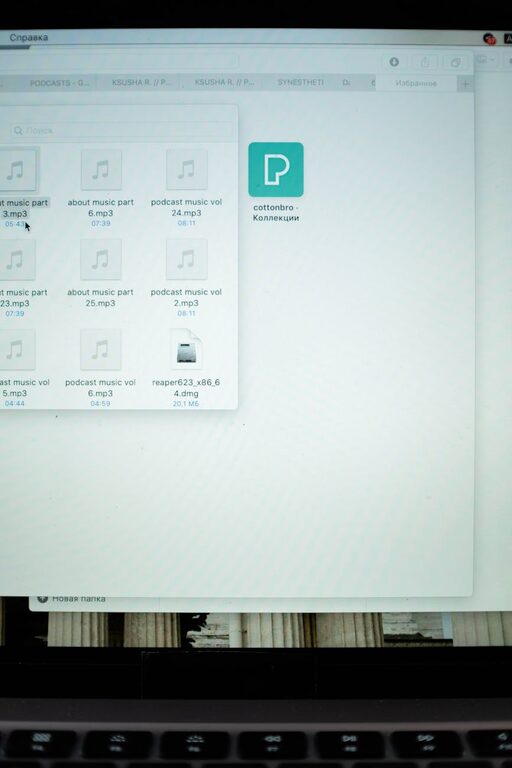
Keeping your computer files organized may seem like a daunting task, especially if you’ve accumulated years of documents, photos, and downloads. However, a well-structured file system not only saves time but also reduces stress and improves productivity. In this post, we’ll explore practical tips to help you tidy up your digital space and maintain it effortlessly.
Why Organize Your Files?
Before diving into tips, it’s essential to understand why file organization matters:
– Easy Access: Quickly find important documents without endless searching.
– Reduced Clutter: A clean file system reduces distractions and digital overwhelm.
– Improved Efficiency: Spend less time managing files and more time being productive.
– Data Safety: Organized files help with efficient backups and less data loss risk.
With these benefits in mind, let’s explore some actionable strategies.
Start with a Simple Folder Structure
Creating a clear folder hierarchy forms the backbone of organization.
1. Categorize Broadly First
Begin by identifying main categories relevant to your files. Examples include:
– Work
– Personal
– Photos
– Finances
– Projects
Avoid creating too many top-level folders, as this can complicate navigation.
2. Use Subfolders for Specifics
Break down each main folder into subfolders based on specifics. For example, inside “Work,” you might have:
– Reports
– Presentations
– Budget
Inside “Photos,” subfolders based on year or event can be helpful.
Name Files and Folders Clearly
Meaningful file names make searching effortless.
Tips for Naming Files:
– Use descriptive names, e.g., “Meeting_Notes_March2024” instead of “Notes1.”
– Include dates when relevant, following the YYYY-MM-DD format to keep files sorted chronologically.
– Avoid spaces and special characters; use underscores or hyphens instead.
– Keep names consistent to maintain order.
Similarly, folder names should be clear and straightforward, reflecting their contents precisely.
Regularly Delete Unnecessary Files
One key to file organization is knowing when to let go:
– Remove duplicates, outdated documents, or files no longer needed.
– Empty your “Downloads” folder frequently, as it can quickly accumulate clutter.
– Use tools like duplicate file finders to assist with cleanup.
Deleting files not only clears space but also reduces time spent sifting through irrelevant items.
Utilize Built-in Search and Tagging Features
Modern operating systems have powerful search capabilities:
– Add tags to files for easier grouping. For example, macOS allows tagging by color or label.
– Use consistent keywords in file names or metadata to improve search accuracy.
Combining search with an organized folder structure ensures you never lose sight of important files.
Backup and Sync Your Files
An organized file system also means safeguarding your data:
– Use cloud storage solutions like Google Drive, Dropbox, or OneDrive to back up critical files.
– Schedule regular backups to an external hard drive.
– Keep synced folders consistent across devices to avoid confusion.
Backups keep your files safe and your organization efforts secure.
Leverage File Management Software
If you have many files, consider using dedicated software:
– File explorers with advanced features can help batch rename, sort, or tag files.
– Some programs offer automatic organization based on rules you set.
Using the right tools can save significant time and keep your system orderly.
Set Aside Time Weekly for Maintenance
Organization is an ongoing process:
– Dedicate 10-15 minutes weekly to file management.
– Review new files and place them in the correct folders immediately.
– Delete any files you no longer need.
Making this a habit prevents clutter from building up again.
Use Cloud Solutions for Collaboration
If you work with others, organizing files in shared cloud folders keeps collaboration smooth:
– Ensure everyone follows the same naming and folder structure.
– Avoid duplication by working on files directly in the shared space.
– Set permissions carefully to keep files secure.
This keeps the workflow organized and efficient.
Customize Your Desktop for Efficiency
Your desktop can quickly become cluttered:
– Limit desktop shortcuts to frequently used folders or applications only.
– Use folders on your desktop to group related shortcuts.
– Regularly clear files saved temporarily on the desktop.
A tidy desktop is a good visual sign of organized digital habits.
Summary
Organizing files on your computer doesn’t have to be overwhelming. By creating a simple folder structure, naming files clearly, deleting unneeded items, and maintaining regularly, you can keep your digital workspace clean and functional. Combine these habits with backup solutions and helpful tools, and you’ll enjoy faster, stress-free access to your files every day.
Start small, stay consistent, and watch how a little organization makes a big difference!